# AIPrompt Button Styling

The AIPrompt Button is used to show the AIPrompt inside a popup. You can customize the AIPrompt Button by setting its `Style` property with `TargetType` set to `RadTemplatedButton`.

The following example demonstrates how to modify the AIPrompt Button's appearance:

**1.** Add a `Style` property with the needed styling settings applied to the page's resources:

```XAML
<Style x:Key="MyAIPromptButtonStyle" TargetType="telerik:RadTemplatedButton">
    <Setter Property="TextColor" Value="#00897B" />
    <Setter Property="Background" Value="White" />
    <Setter Property="BorderBrush" Value="#00897B" />
    <Setter Property="BorderThickness" Value="1" />
    <Setter Property="VisualStateManager.VisualStateGroups">
        <VisualStateGroupList>
            <VisualStateGroup Name="CommonStates">
                <VisualState Name="Normal" />
                <VisualState Name="Focused" />
                <VisualState Name="MouseOver">
                    <VisualState.Setters>
                        <Setter Property="telerik:RadTemplatedButton.Background" Value="#E8F5F4" />
                    </VisualState.Setters>
                </VisualState>
                <VisualState Name="FocusedMouseOver">
                    <VisualState.Setters>
                        <Setter Property="telerik:RadTemplatedButton.Background" Value="#E8F5F4" />
                    </VisualState.Setters>
                </VisualState>
                <VisualState Name="Pressed">
                    <VisualState.Setters>
                        <Setter Property="telerik:RadTemplatedButton.TextColor" Value="#9900897B" />
                        <Setter Property="telerik:RadTemplatedButton.Background" Value="#E8F5F4" />
                    </VisualState.Setters>
                </VisualState>
                <VisualState Name="FocusedPressed">
                    <VisualState.Setters>
                        <Setter Property="telerik:RadTemplatedButton.TextColor" Value="#9900897B" />
                        <Setter Property="telerik:RadTemplatedButton.Background" Value="#E8F5F4" />
                    </VisualState.Setters>
                </VisualState>
                <VisualState Name="Disabled">
                    <VisualState.Setters>
                        <Setter Property="telerik:RadTemplatedButton.TextColor" Value="#6100897B" />
                        <Setter Property="telerik:RadTemplatedButton.BorderBrush" Value="#6100897B" />
                    </VisualState.Setters>
                </VisualState>
            </VisualStateGroup>
        </VisualStateGroupList>
    </Setter>
</Style>
```

**2.** Add the `RadAIPromptButton` control with its `Style` applied:

```XAML
<telerik:RadAIPromptButton HorizontalOptions="End"
                           VerticalOptions="End"
                           Style="{StaticResource MyAIPromptButtonStyle}">
    <telerik:RadAIPrompt InputText="{Binding InputText}"
                         PromptRequestCommand="{Binding PromptRequestCommand}"
                         OutputItems="{Binding OutputItems}" />
</telerik:RadAIPromptButton>
```

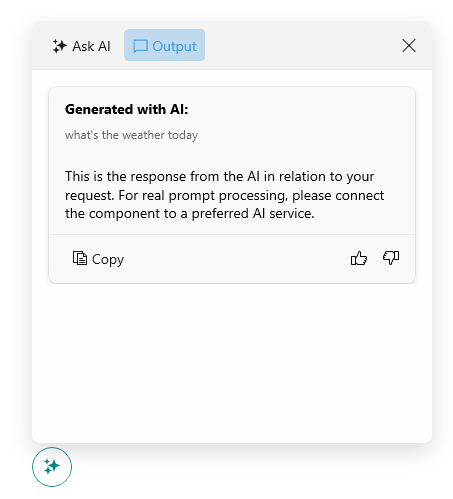
Check the result below:

![Telerik UI for .NET MAUI AIPrompt Button styled as a light blue Ask AI button](https://www.telerik.com/maui-ui/documentation/assets/3897cf3f80283641a2e225df784571d0/aiprompt-aipromptbutton-styling.png)

## See Also

* [AIPrompt Button](https://www.telerik.com/maui-ui/documentation/controls/aiprompt/aiprompt-button)