# Images
The Spreadsheet supports the placing of images in its sheets.
To load an image to a sheet, use any of the following approaches:
* Use the Insert Image tool available on the Spreadsheet toolbar.
* Use the initial configuration of the Spreadsheet to load and point to the component.
* Use the `sheet.addImage()` API method.
## Using the Insert Image Tool
You can upload and insert a custom image in the Spreadsheet with the `Insert Image` tool.
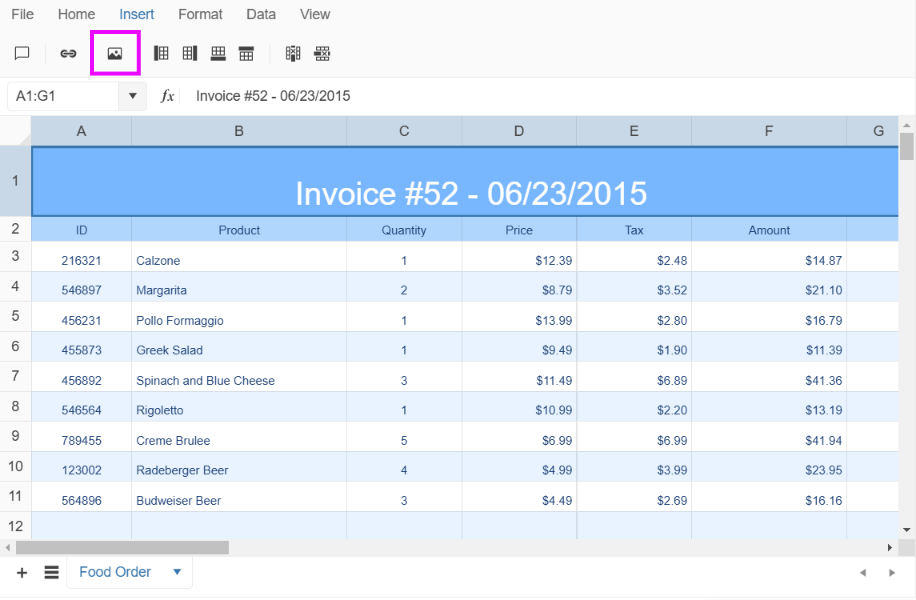
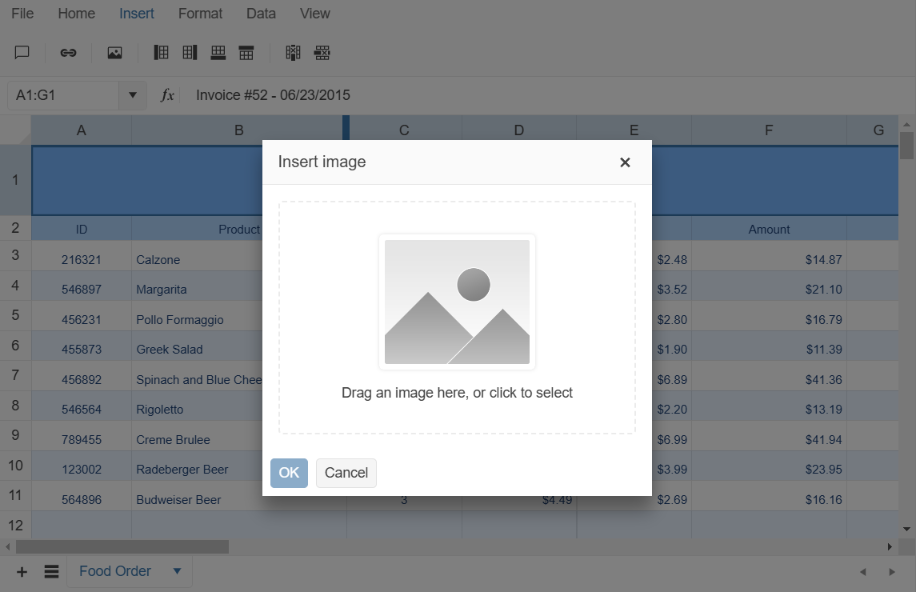
Then, in the popup window, you can select or drag in a file from the file system.
## Configuring the Spreadsheet to Initially Display an Image
1. To properly configure the Spreadsheet to display an image on one its sheets, add a definition for the image to the Spreadsheet [`images`](https://www.telerik.com/kendo-jquery-ui/documentation/api/ui/spreadsheet/configuration/images) field. In the `images` object each image should be specified with unique key (property name) holding as value the image URL. The image URLs can be either [data URLs](https://developer.mozilla.org/en-US/docs/Web/HTTP/Basics_of_HTTP/Data_URIs), in which case the images are fully contained in the definition, or can be external URLs.
```
images: {
testImage: "../images/1.jpg"
}
```
2. Reference that image and place it accordingly using the [`drawings`](https://www.telerik.com/kendo-jquery-ui/documentation/api/ui/spreadsheet/configuration/sheets#sheetsdrawings) array of the respective sheet.
The drawing definition has to contain:
```
* A pointer to the cell that will hold the top-left corner of the image: `topLeftCell: "J6"`.
* X and Y offset of the top-left corner: `offsetX: 30, offsetY: 10`.
* Dimensions of the rendered image: `width: 320, height: 220`.
* A pointer to the image key that is used in the `images` configuration of the Spreadsheet: `image: "testImage"`.
```
The following example demonstrates how to configure the Spreadsheet to display an image with top-left corner placed in the `J6` cell.
```
```
## Using the addImage() Method
The Spreadsheet Sheet API exposes a method that allows you to programmatically add an image to the Spreadsheet and place it on a sheet.
1. Create a new `kendo.spreadsheet.Drawing` object. The configuration of the `Drawing` object is the same as the one described in the example from the previous section.
2. Pass the `Drawing` to the [`sheet.addDrawing()`](https://www.telerik.com/kendo-jquery-ui/documentation/api/spreadsheet/sheet/methods/adddrawing).
> When you use the export functionality of the Spreadsheet together with images, note the following:
>
> * Images are supported only for client-side import and export. When you engage server-side import or export, no images will be loaded or exported.
> * To properly export any image to PDF by using the default Spreadsheet functionality, at least one cell with data has to be present on the sheet which contains that image.
```
```
## See Also
* [Adding Images to the Spreadsheet (Demo)](https://demos.telerik.com/kendo-ui/spreadsheet/images)
* [Spreadsheet JavaScript API Reference](https://www.telerik.com/kendo-jquery-ui/documentation/api/ui/spreadsheet)