# Views Overview

The FileManager provides two inbuilt views for content visualization: `Grid` and `List` Views.

You can switch between views from the Toolbar button group

## Grid View

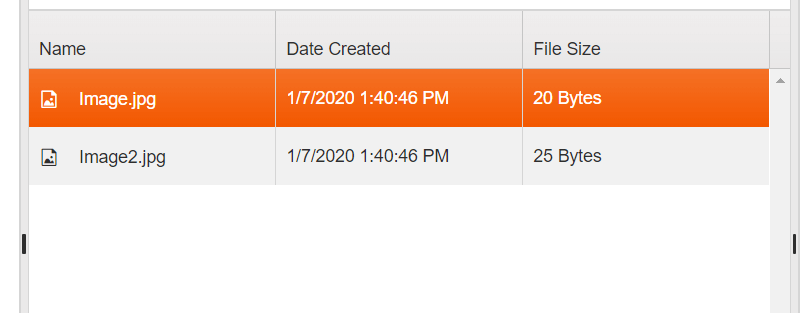
This view is achieved with the Kendo Grid and in renders the files in a tabular manner (see Image1 below). That said, you can control the configuration of this view through the `views.grid` object of the FileManager (see example below).

```dojo
    <div id="fileManager"></div>
    <script>
        var baseUrl = "https://demos.telerik.com/service/v2/core/filemanager/";
	    
        $("#fileManager").kendoFileManager({
          views: {
            grid: {
              sortable: false //disable the sorting of the grid
            }
          },
          dataSource: {
            transport: {
              read: {
                method: "POST",
                url: baseUrl + "Read"
              },
              update: {
                method: "POST",
                url: baseUrl + "Update"
              },
              create: {
                method: "POST",
                url: baseUrl + "Create"
              },
              destroy: {
                method: "POST",
                url: baseUrl + "Destroy"
              }
            }
          }
        });
    </script>
```

**GridView type in FileManager:**

![Kendo UI for jQuery FileManager Grid View](https://www.telerik.com/kendo-jquery-ui/documentation/assets/6088ad09b8d31599796bd393a5b183b2/gridview.png)

## List View (Thumbnails)

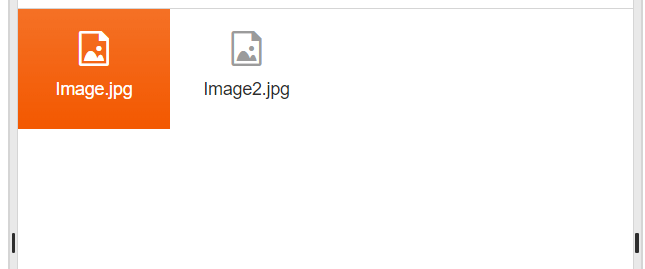
The List view is implemented with the help of the Kendo ListView component. The content in this view is rendered as a list of thumbnails, representing the files. You can control the configuration of this view trough the `views.list` object of the FileManager.

```dojo
     <div id="fileManager"></div>
    <script>
      var baseUrl = "https://demos.telerik.com/service/v2/core/filemanager/";

      $("#fileManager").kendoFileManager({
        views: {          
          list: {
              selectable: "single" //allows only single selection int the ListView
          }
        },
        dataSource: {
          transport: {
            read: {
              method: "POST",
              url: baseUrl + "Read"
            },
            update: {
              method: "POST",
              url: baseUrl + "Update"
            },
            create: {
              method: "POST",
              url: baseUrl + "Create"
            },
            destroy: {
              method: "POST",
              url: baseUrl + "Destroy"
            }
          }
        }
      });
    </script>
```

**ListView type in FileManager:**

![Kendo UI for jQuery FileManager ListView](https://www.telerik.com/kendo-jquery-ui/documentation/assets/a8b5e87b7208eb9378a7bff7b915fce8/listview.png)

## See Also

* [ContextMenu in Kendo UI FileManager](https://www.telerik.com/kendo-jquery-ui/documentation/controls/filemanager/context-menu)
* [Drag and Drop in Kendo UI FileManager](https://www.telerik.com/kendo-jquery-ui/documentation/controls/filemanager/drag-and-drop)