# Virtualization
The [Kendo UI AutoComplete](https://demos.telerik.com/kendo-ui/autocomplete/index), the [ComboBox](https://demos.telerik.com/kendo-ui/combobox/index), the [DropDownList](https://demos.telerik.com/kendo-ui/dropdownlist/index), and the [MultiSelect](https://demos.telerik.com/kendo-ui/multiselect/index) support UI and data virtualization.
Virtualization enables you to display large datasets by using a fixed amount of list items in the popup list of the ComboBox regardless of the dataset size. When the list is scrolled, the ComboBox reuses the existing items to display the relevant data instead of creating new ones.
The approaches for configuring the virtualization functionality of the ComboBox that are demonstrated in this article are identical for configuring the grouping functionality of the AutoComplete, DropDownList, and MultiSelect components.
For runnable examples on virtualization, refer to the following demos:
* [Virtualization in the ComboBox (demo)](https://demos.telerik.com/kendo-ui/combobox/virtualization)
* [Virtualization in the AutoComplete (demo)](https://demos.telerik.com/kendo-ui/autocomplete/virtualization)
* [Virtualization in the DropDownList (demo)](https://demos.telerik.com/kendo-ui/dropdownlist/virtualization)
* [Virtualization in the MultiSelect (demo)](https://demos.telerik.com/kendo-ui/multiselect/virtualization)
## Getting Started
To retrieve and display only a subset of the whole dataset, the ComboBox combines data and User Interface (UI) virtualization. To implement data virtualization, the ComboBox uses the paging functionality of the DataSource and remote data retrieval. In this way, the component retrieves only a specified data page instead of requesting the whole dataset at once. To ensure the proper functioning of the ComboBox, configure the paging of the DataSource correctly. For more information, refer to the [server paging](https://www.telerik.com/kendo-jquery-ui/documentation/api/data/datasource/configuration/serverpaging) configuration.
The following example demonstrates how to set the minimum component and DataSource configurations for the virtualization to work as expected.
```dojo
```
## Basic Configuration
In order for the virtualization to properly work:
* [Set the item height](https://www.telerik.com/kendo-jquery-ui/documentation/controls/combobox/virtualization#setting-the-item-and-container-height)
* [Set the page size](https://www.telerik.com/kendo-jquery-ui/documentation/controls/combobox/virtualization#setting-the-page-size)
* [Return the appropriate data](https://www.telerik.com/kendo-jquery-ui/documentation/controls/combobox/virtualization#returning-the-appropriate-data)
### Setting the Item and Container Heights
The ComboBox applies a specific strategy of reusing a list of DOM elements for displaying the corresponding data chunk. The number of these elements is determined based on the [`height`](https://www.telerik.com/kendo-jquery-ui/documentation/api/ui/combobox/configuration/height) and [`itemHeight`](https://www.telerik.com/kendo-jquery-ui/documentation/api/ui/combobox/configuration/virtual#virtual.itemHeight) options. Once the number is calculated, the component creates those elements and starts reusing them to display the current data source page.
All items in the virtualized list need to have the same height. If you do not specify a height value, `itemHeight` will be automatically set as it is set in the current theme and font size.
> If you do not specify an `itemHeight` option, the ComboBox will perform an extra DataSource request which rarely causes any critical issues.
The virtualized list container needs to have a `height` option that is set in pixels. Otherwise, the list will use the default `height` of `200px`.
### Setting the Page Size
To ensure the correct work of the ComboBox, the `pageSize` value of the DataSource is calculated automatically based on the (([`height`](https://www.telerik.com/kendo-jquery-ui/documentation/api/ui/combobox/configuration/height) / [`itemHeight`](https://www.telerik.com/kendo-jquery-ui/documentation/controls/combobox/virtualization#itemheight)) \* 4) formula. The ComboBox itself does the calculation and the defined `pageSize` value is overridden if it does not match the calculated one. For example, if the `height` is set to `520px` and the `itemHeight` is set to `26`, the `pageSize` will be set to `80` because ((520 / 26) \* 4) is equal to `80`.
> * Enabling paging and setting `pageSize` is efficient only when the virtualization of the ComboBox is configured.
> * To avoid multiple initial requests, define a correct `pageSize` value.
### Returning the Appropriate Data
The response for each virtualization request has to contain the following fields:
* An array with the specified page of data.
* The total count of all items that are present in the dataset of the `Total` field.
You can specify the fields that contain the array of [`data`](https://www.telerik.com/kendo-jquery-ui/documentation/api/data/datasource/configuration/schema#schemadata) and the [`total`](https://www.telerik.com/kendo-jquery-ui/documentation/api/data/datasource/configuration/schema#schematotal) in the configuration of the data source schema of the ComboBox. Once a page of data is received on the client, it will be cached, and if the user scrolls through the list, no new requests will be made for earlier pages of data and the virtualization will happen on the client only.
> To prevent infinite requests for the last page of data, ensure that the `Total` count is reached. If it is not, the component will make requests until it receives the denoted total amount of unique items.
## Value Mapping
> As of the Kendo UI R3 2016 release, the implementation of the `valueMapper` function is optional and is required only if the component contains an initial value or uses the `value` method.
Unlike the data and UI virtualization, the `valueMapper` was introduced because the ComboBox needs to maintain the selected item and to display the selected data item based on the value alone. To display the selected text, the component has to retrieve the selected data item which is part of a specific data page that is unknown to you. The required information is gathered with the `valueMapper` callback. It passes the selected value and requests the corresponding row `index` or `dataItem` of that value depending on the `mapValueTo` configuration option.
### Mapping index Values
When the component receives a value which is not fetched from the remote server yet, it calls the `valueMapper` function and passes the selected values in that function. If the `mapValueTo` is not explicitly set to `dataItem`, the `valueMapper` implementation is expected to return the respective data item index. From this index the component calculates the page number and in this way pre-fetches only that particular page by sending an additional Ajax request. If the value does not exist, the `valueMapper` is expected to return `null`, `[]`, or `-1` and the component will deselect the currently selected items.
```javascript
valueMapper: function(options) {
$.ajax({
url: "https://demos.telerik.com/service/v2/core/Orders/ValueMapper",
type: "GET",
data: options.value, //send value to the server
success: function (data) {
options.success(data); //return the index number of the corresponding data item
}
})
}
```
### Mapping dataItem Values
The changes introduced with the Kendo UI R3 2016 release enable you to determine if the `valueMapper` must resolve a value to an `index` or a value to a `dataItem`. This is configured through the `mapValueTo` option that accepts two possible values—`"index"` or `"dataItem"`. By default, the `mapValueTo` is set to `"index"`, which does not affect the current behavior of the virtualization process.
If you implement the `mapValueTo: "dataItem"` configuration, the `valueMapper` is expected to return the `dataItems` that corresponds to the selected values. The component will use the returned `dataItems` to render the selected values but will not scroll the list to the selected values. When the user opens the list, the component will display the options from the first data page instead, no matter whether the selected value is a part of the first page or not. This is the main limitation of the `mapValueTo: dataItem` configuration.
```javascript
mapValueTo: "dataItem",
valueMapper: function(options) {
$.ajax({
url: "https://demos.telerik.com/service/v2/core/Orders/ValueMapper",
type: "GET",
data: options.value, //send value to the server
success: function (dataItems) {
options.success(dataItems); //return the dataItems that correspond to provided values
}
})
}
```
### Mapping Values to index
The `mapValueTo: "index"` configuration is set by default. The `valueMapper` is called when you want to select a data item that is not present in the data source.
To see the process in action, use the sample case with the following component configuration:
* The `pageSize` is set to `50`.
* The selected value is `foo`.
On initial load, the component checks whether the selected value is present in the loaded data. If it is not, it performs the following actions:
1. It calls the `valueMapper`, requesting a row index that corresponds to the selected value `foo`.
2. The `valueMapper` calls the `service 1`, passing the selected value `foo` to it.
3. The `service 1` finds the row index that corresponds to the `foo` value. In this case it is `1250`.
4. The `valueMapper` function returns this row index to the component.
5. The component calculates the page number. In this case it is `25`.
6. The component requests it from the `service 2` using the `dataSource`.
7. The `service 2` returns the corresponding 25th page.
8. The `dataSource` changes the page to `25` and displays the items showing the selected item too.
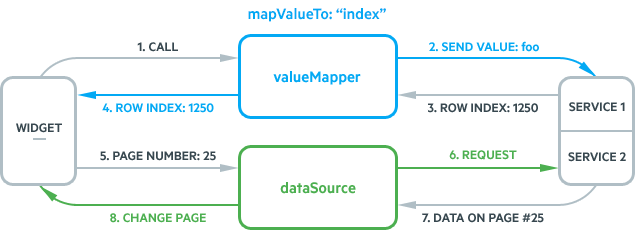
**Function result** The `valueMapper` is expected to return a row index or a list of indices when a multiple selection is available. That being said, the service is expected to return either an index (number) or a list of indices. If the value does not exist, the `valueMapper` returns `null`, `[]`, or `-1`, and the component deselects the currently selected items. For an example, refer to the result of [the test service](https://demos.telerik.com/kendo-ui/combobox/virtualization) that is used in the online demos.
```javascript
$.ajax({
url: "https://demos.telerik.com/service/v2/core/Orders/ValueMapper",
type: "GET",
data: { "values[0]": "10661" }
success: function (data) {
// The returned data is [413].
options.success(data);
}
})
```
The Ajax method calls URLs similar to `https://demos.telerik.com/service/v2/core/Orders/ValueMapper?values[0]=10661` and the result is `callback([413]) //the result is JSONP`.
**Function implementation** The service maps the selected value to a particular row index. The implementation of this functionality is completely under your control. However, the most simplified implementation includes the iteration of all items counting the index of the rows. A more optimized solution still is to use a dedicated SQL method that handles this action internally. You can do this by using the [`ROW_NUMBER()`](https://msdn.microsoft.com/en-us/library/ms186734.aspx) function.
### Mapping Values to dataItem
The `mapValueTo: "dataItem"` configuration is available as of the Kendo UI R3 2016. The `valueMapper` is called when you want to select a data item that is not present in the data source.
To see the process in action, use the sample case with the following component configuration:
* The `pageSize` is set to `50`.
* The selected value is `foo`.
On initial load, the component checks whether the selected value is present in the loaded data. If it is not, it performs the following actions:
1. It calls the `valueMapper`, requesting a dataItem that corresponds to the selected value `foo`.
2. The `valueMapper` calls the `service 1`, passing the selected value `foo` to it.
3. The `service 1` finds the dataItem that corresponds to the `foo` value. In this case it is `{text: "bar", value: "foo"}`.
4. The `valueMapper` function returns this dataItem to the component.
5. The component renders the selected item template.
6. The component requests the first page from `service 2` using the `dataSource`.
7. The `service 2` returns the first data page.
8. The component list displays the items from the first page no matter if the selected items are part of it or not.
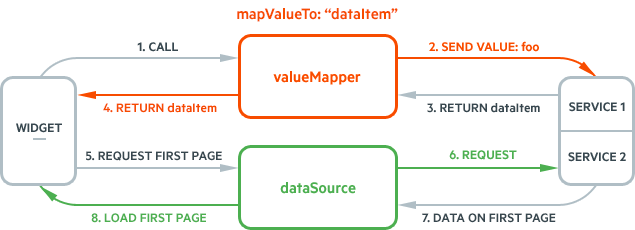
**Function result** The `valueMapper` is expected to return a data item or a list of data items when a multiple selection is available. That being said, the service is expected to return either an data item (object) or a list of data items. If the values does not exist, the `valueMapper` returns `null` or `[]`, and the component deselects the currently selected values.
## Known Limitations
* The virtualization feature can work with objects, while virtualization of primitive values is not supported.
* The rendered items should have equal heights. Every single item in the virtualized list displays a height that is set through the [`itemHeight`](https://www.telerik.com/kendo-jquery-ui/documentation/controls/combobox/virtualization#itemheight) option.
* The virtualization feature performs a complex data pre-fetching and assumes that the DataSource state will not change without the knowledge of the component. Any manual data operations, such as `read`, `page`, `filter`, `add`, `remove`, etc., might lead to unexpected behavior for the component and are not supported.
## See Also
* [Virtualization in the ComboBox (Demo)](https://demos.telerik.com/kendo-ui/combobox/virtualization)
* [JavaScript API Reference of the ComboBox](https://www.telerik.com/kendo-jquery-ui/documentation/api/ui/combobox)
* [JavaScript API Reference of the DataSource](https://www.telerik.com/kendo-jquery-ui/documentation/api/data/datasource)