# Create 307 Redirect
The redirect status codes (3xx) are indicators that a page or resource has been moved (temporarily or permanently) from its original destination. During server updates, redesigns, and other application changes, developers often use the temporary **307** redirect, also known as an internal redirect. The 307 redirect points users to new URLs using the `location` header, while at the same time indicating (to search engines) that the change is only temporary. This helps with SEO (search engine optimization).
With Fiddler Everywhere, you can easily create a rule that redirects traffic with status code 307.
## Creating a "Redirect to URL with 307" Rule
Create a "Redirect to URL with 307" rule by setting the following actions through the [Rules Builder](https://www.telerik.com/fiddler/fiddler-everywhere/documentation/modify-and-filter-traffic/modify-traffic-with-rules).
1. Create a matching condition that uses the "When **all these conditions** are met **any number of times**" pattern.
2. Match by a **Method** where the string value equals the desired HTTP method. For example: a `GET` method.
3. Match by a **URL** where the string value defines the targeted hosts. For example: a regular expression that matches the `example.com` domain.
4. Create an **Update Status Code** action and set it to `307 Internal Redirect`.
5. Create an **Update Response Header** action and set the `Location` header to the desired new value. For example: `https://www.example.com`.
This sample Fiddler rule matches all sessions where the host is **example.com** and then creates a temporary 307 redirect.

Once the rule is created, enable the **Rules** tab, toggle the rule switch, and start capturing traffic.
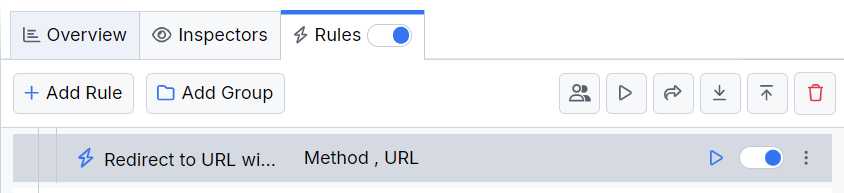
Download a ready-to-use "Redirect to URL with 307" rule as a FARX file, which you can import through the Rules toolbar.
## See Also
* [Learn more about the Rules functionality in Fiddler Everywhere here...](https://www.telerik.com/fiddler/fiddler-everywhere/documentation/modify-and-filter-traffic/modify-traffic-with-rules)
* [Learn more about all rules presets in Fiddler Everywhere here...](https://www.telerik.com/fiddler/fiddler-everywhere/documentation/rules-presets)
* [Learn more on how to organize your rules here...](https://www.telerik.com/fiddler/fiddler-everywhere/documentation/modify-and-filter-traffic/organizing-rules)
* [Learn more about the matching conditions here...](https://www.telerik.com/fiddler/fiddler-everywhere/documentation/modify-and-filter-traffic/conditions-and-actions#conditions)
* [Learn more about the supported actions here...](https://www.telerik.com/fiddler/fiddler-everywhere/documentation/modify-and-filter-traffic/conditions-and-actions#actions)
* [Learn more about final and non-final rules here...](https://www.telerik.com/fiddler/fiddler-everywhere/documentation/modify-and-filter-traffic/conditions-and-actions#final-and-non-final-actions)
* [Learn more about using breakpoints here...](https://www.telerik.com/fiddler/fiddler-everywhere/documentation/modify-and-filter-traffic/breakpoints)