# GridColumn in a separate file is always displayed as last on the right
## Environment
## Description
I have noticed that if I specify a GridColumn in a razor component and then try to use it in a Telerik Grid elsewhere, this column gets set as the last one on the right, regardless of where I place it in my code (the "html" order). Is there any way to either make the "html" order matter or to specify the position of the column in a grid?
When you use `GridColumn` tags directly in the grid markup, they are rendered in the order they are set in the markup.
When you put a `GridColumn` in a custom component in the app and put that component in the grid columns declaration, the column is not rendered in the place of declaration but at the end.
## Possible Cause
This behavior stems from the order in which the framework initializes components.
All parent components are initialized before their child components.
On initialization, child components are always rendered after their parent component. On the other hand, the grid receives the `GridColumn` instances in the order in which their components are initialized. This determines why columns in a custom component will be initialized and rendered last. Furthermore, columns that are added programmatically later in the component lifecycle will also be rendered last.
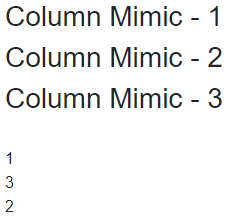
You can observe and reproduce the same behavior with the example below.
> caption Components rendering. The result from the code snippet below.
```RAZOR GridColumnMimic
@* This mimics the tag *@
Column Mimic - @Id
@code {
[Parameter]
public int Id { get; set; }
[CascadingParameter]
public Index ParentComponent {get;set;}
protected override void OnInitialized()
{
ParentComponent.AddChildToParent(Id);
Console.WriteLine(Id);
base.OnInitialized();
}
}
```
```RAZOR NestedComponent
@* This is the custom component that adds grid columns *@
@code {
[Parameter]
public int Id { get; set; }
}
```
```RAZOR Index
@page "/"
@( new MarkupString(result) )
@*Will output:
1
3
2
Instead of:
1
2
3
*@
@code {
string result { get; set; }
public void AddChildToParent(int index)
{
result += $"
{index}";
StateHasChanged();
}
}
```
> tip If you want to have conditional columns, you can use the [`Visible`](https://www.telerik.com/blazor-ui/documentation/components/grid/columns/visible) parameter. The condition can be a ternary operator or a method that returns a bool.
## Solution
There are two ways for specifying the position of the columns in the grid:
* Avoid nesting components and put the grid columns directly under the grid tag.
* Use the [Grid State](https://www.telerik.com/blazor-ui/documentation/components/grid/state), its methods (`GetState`, `SetStateAsync`) and events (`OnStateInit`, `OnStateChanged`) to get the collection of column states and change the `Order` of the instances you want to rearrange.