# Getting Started with the TileLayout

This tutorial explains how to set up a basic Telerik UI for ASP.NET Core TileLayout and highlights the major steps in the configuration of the component.

You will initialize a TileLayout component that contains two containers—a [TabStrip](https://www.telerik.com/aspnet-core-ui/documentation/html-helpers/navigation/tabstrip/overview) component with integrated [Cards](https://demos.telerik.com/aspnet-core/cards) and [Calendar](https://www.telerik.com/aspnet-core-ui/documentation/html-helpers/scheduling/calendar/overview) and a [Data Grid](https://www.telerik.com/aspnet-core-ui/documentation/html-helpers/data-management/grid/overview) component. Next, you will handle the TileLayout events and display the event data in the browser console. Also, you will learn how to reference the client-side instance of the component. Finally, you can run the sample code in [Telerik REPL](https://netcorerepl.telerik.com/) and continue exploring the component.
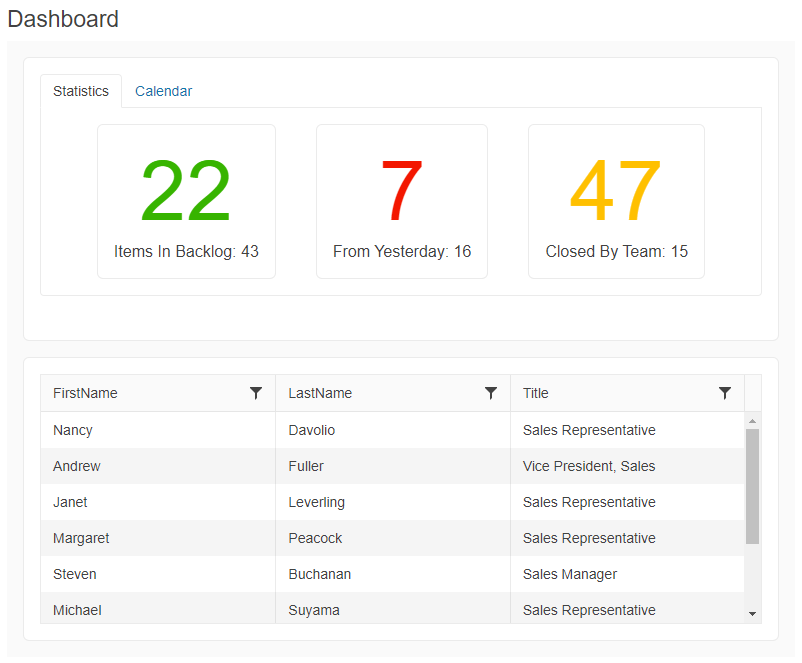
![Sample Telerik UI for ASP.NET Core TileLayout](https://www.telerik.com/aspnet-core-ui/documentation/assets/3e616065f330267ec66261b9a8cba3d6/tilelayout-getting-started.png)

## Prerequisites

To successfully complete the tutorial, you need a project that is already configured to use the Telerik UI for ASP.NET Core components:

* You can use the [Telerik REPL](https://netcorerepl.telerik.com/) playground and skip installing the components on your system and configuring a project.

* You can prepare a Visual Studio project by following the following guide:

  * Creating a new pre-configured project for the Telerik UI for ASP.NET Core components from [a project template](https://www.telerik.com/aspnet-core-ui/documentation/vs-integration/new-project-wizard).

## 1. Prepare the CSHTML File

The first step is to add the required directives at the top of the `.cshtml` document:

* To use the Telerik UI for ASP.NET Core HtmlHelpers:

  ```cshtml
  @using Kendo.Mvc.UI
  ```

* To use the Telerik UI for ASP.NET Core TagHelpers:

  ```cshtml
  @addTagHelper *, Kendo.Mvc
  ```

Optionally, you can structure the View content by adding the desired HTML elements like headings, divs, paragraphs, and others.

```Razor HtmlHelper
    @using Kendo.Mvc.UI

    <h4>Dashboard</h4>
    <div>

    </div>
```

```Razor TagHelper
    @addTagHelper *, Kendo.Mvc

    <h4>Dashboard</h4>
    <div>

    </div>
```

## 2. Initialize the TileLayout

Use the TileLayout HtmlHelper or TagHelper to add the component to a page:

* The `Name()` configuration method is mandatory as its value is used for the `id` and the `name` attributes of the TileLayout element.
* The `Containers()` configuration specifies the tile containers. Each container has a header and body.
* The `Columns()` method lets you set the desired number of columns. The number of rows in which the tiles will be displayed will adjust automatically.

```Razor HtmlHelper
    @using Kendo.Mvc.UI

    @(Html.Kendo().TileLayout()
        .Name("tilelayout")
        .Columns(2)
        .Containers(c => {
            c.Add().Header(h => h.Text("Title 1")).BodyTemplate("Container 1");
            c.Add().Header(h => h.Text("Title 2")).BodyTemplate("Container 2");
            c.Add().Header(h => h.Text("Title 3")).BodyTemplate("Container 3");
        })
    )

```

```Razor TagHelper
    @addTagHelper *, Kendo.Mvc

    <kendo-tilelayout name="tilelayout" columns="2">
        <containers>
            <container>
                <container-body-template>Container 1</container-body-template>
                <container-header text="Title 1"/>
            </container>
            <container>
                <container-body-template>Container 2</container-body-template>
                <container-header text="Title 2"/>
            </container>
            <container>
                <container-body-template>Container 3</container-body-template>
                <container-header text="Title 3"/>
            </container>
        </containers>
    </kendo-tilelayout>
```

## 3. Integrate UI Components into the TileLayout

The next step is to integrate a [TabStrip](https://www.telerik.com/aspnet-core-ui/documentation/html-helpers/navigation/tabstrip/overview) component with two tabs and a [Data Grid](https://www.telerik.com/aspnet-core-ui/documentation/html-helpers/data-management/grid/overview) component. Each component that is incorporated into the TileLayout will have the all the functionalities and options available in the stand-alone nested component. You can integrate any Telerik UI for ASP.NET Core component into the TileLayout.

* Include the TabStrip component by creating an [external Kendo UI template](https://www.telerik.com/aspnet-core-ui/documentation/html-helpers/helper-basics/using-client-templates#external-client-templates) and setting the name of the template in the `BodyTemplateId()` method of the TileLayout HtmlHelper or the `body-template-id` attribute of the TileLayout TagHelper.

  ```Razor HtmlHelper
      @using Kendo.Mvc.UI

      <script id="tabStripContainer" type="text/x-kendo-template">
          @(Html.Kendo().TabStrip()
          .Name("tabstrip")
          .Items(tabstrip =>
          {
              tabstrip.Add().Text("Dashboard Information")
                  .Selected(true)
                  .Content(@<text>
                      <div class="status-cards">
                          <div class="k-card">
                              <div class="k-card-body">
                                  <div class="k-card-result on-track-tasks">22</div>
                                  <div class="k-card-title">Items in Backlog: 43</div>
                              </div>
                          </div>
                          <div class="k-card">
                              <div class="k-card-body">
                                  <div class="k-card-result overdue-tasks">7</div>
                                  <div class="k-card-title">From Yesterday: 16</div>
                              </div>
                          </div>
                          <div class="k-card">
                              <div class="k-card-body">
                                  <div class="k-card-result issues">47</div>
                                  <div class="k-card-title">Closed By Team: 15</div>
                              </div>
                          </div>
                      </div>
                  </text>);

                  tabstrip.Add().Text("Calendar")
                  .Content(@<text>
                      <div class="calendar-widget">
                          @(Html.Kendo().Calendar()
                              .Name("calendar")
                              .ComponentType("modern")
                              .ToClientTemplate()
                          )
                      </div>
                  </text>);
          })
          .ToClientTemplate()
          )
      </script>

      @(Html.Kendo().TileLayout()
          .Name("tilelayout")
          .Columns(1)
          .Containers(c => {
              c.Add().Header(h => h.Text("Tools")).BodyTemplateId("tabStripContainer");
          })
      )

  ```

  ```Razor TagHelper
      @addTagHelper *, Kendo.Mvc

      <script id="tabStripContainer" type="text/html">
          <kendo-tabstrip name="tabstrip" is-in-client-template="true">
              <items>
                  <tabstrip-item text="Dashboard Information" selected="true">
                      <content>
                          <div class="status-cards">
                              <div class="k-card">
                                  <div class="k-card-body">
                                      <div class="k-card-result on-track-tasks">22</div>
                                      <div class="k-card-title">Items in Backlog: 43</div>
                                  </div>
                              </div>
                              <div class="k-card">
                                  <div class="k-card-body">
                                      <div class="k-card-result overdue-tasks">7</div>
                                      <div class="k-card-title">From Yesterday: 16</div>
                                  </div>
                              </div>
                              <div class="k-card">
                                  <div class="k-card-body">
                                      <div class="k-card-result issues">47</div>
                                      <div class="k-card-title">Closed By Team: 15</div>
                                  </div>
                              </div>
                          </div>
                      </content>
                  </tabstrip-item>
                  <tabstrip-item text="Calendar">
                      <content>
                          <div class="calendar-widget">
                              <kendo-calendar name="calendar" component-type="modern" is-in-client-template="true"></kendo-calendar>
                          </div>
                      </content>
                  </tabstrip-item>
              </items>
          </kendo-tabstrip>
      </script>


      <kendo-tilelayout name="tilelayout" columns="1">
          <containers>
                  <container body-template-id="tabStripContainer"></container>
          </containers>
      </kendo-tilelayout>
  ```

* Include the Grid component as a separate TileLayout container.

  ```Razor HtmlHelper
      @using Kendo.Mvc.UI

      <script id="gridContainer" type="text/x-kendo-template">
          @(Html.Kendo().Grid<Kendo.Mvc.Examples.Models.EmployeeViewModel>()
              .Name("grid")
              .Columns(columns => {
                  columns.Bound(e => e.FirstName);
                  columns.Bound(e => e.LastName);
                  columns.Bound(e => e.Title);
              })
              .DataSource(dataSource => dataSource
                  .Ajax()
                  .Read(read => read.Action("CustomCommand_Read", "Grid"))
              )
              .Sortable()
              .Filterable()
              .Scrollable()
              .HtmlAttributes(new { style = "height:250px;" })
              .ToClientTemplate()
          )
      </script>

      @(Html.Kendo().TileLayout()
          .Name("tilelayout")
          .Columns(1)
          .Containers(c => {
              c.Add().Header(h => h.Text("Tools")).BodyTemplateId("tabStripContainer");
              c.Add().Header(h => h.Text("All Employees")).BodyTemplateId("gridContainer");
          })
      )
  ```

  ```Razor TagHelper
      @addTagHelper *, Kendo.Mvc

      <script id="gridContainer" type="text/html">
          <kendo-grid name="grid" is-in-client-template="true" height="250">
              <datasource type="DataSourceTagHelperType.Ajax">
                  <transport>
                      <read url="@Url.Action("CustomCommand_Read", "Grid")"/>
                  </transport>
              </datasource>
              <columns>
                  <column field="FirstName"/>
                  <column field="LastName"/>
                  <column field="Title"/>
              </columns>
              <sortable enabled="true"/>
              <scrollable enabled="true"/>
              <filterable enabled="true"/>
          </kendo-grid>
      </script>

      <kendo-tilelayout name="tilelayout" columns="1">
          <containers>
              <container body-template-id="tabStripContainer"></container>
              <container body-template-id="gridContainer"></container>
          </containers>
      </kendo-tilelayout>
  ```

  ```C# Model
      public class EmployeeViewModel
      {
          public string FirstName { get; set; }

          public string LastName { get; set; }

          public string Title { get; set; }
      }

  ```

  ```C# GridController
      public ActionResult CustomCommand_Read([DataSourceRequest] DataSourceRequest request)
      {
          return Json(GetEmployees().ToDataSourceResult(request));
      }
  ```

## 4. Handle a TileLayout Event

The TileLayout exposes convenient events for implementing your desired logic. In this example, you will use the [`Reorder`](https://www.telerik.com/aspnet-core-ui/documentation/api/kendo.mvc.ui.fluent/tilelayouteventbuilder#reordersystemstring) event to log the title, previous, and new position of the reordered item in the browser's console.

```Razor HtmlHelper
@using Kendo.Mvc.UI

    <script id="card1" type="text/x-kendo-template">
        <div class="k-card">
            <div class="k-card-header">
                <h5 class="k-card-title">Rome</h5>
                <h6 class="k-card-subtitle">Capital of Italy</h6>
            </div>
            <div class="k-card-body">
                <p>Rome is a sprawling, cosmopolitan city with nearly 3,000 years of globally influential art, architecture and culture on display.</p>
                <p>Ancient ruins such as the Forum and the Colosseum evoke the power of the former Roman Empire. </p>
            </div>
            <div class="k-card-footer">
                <a class="k-button k-button-flat k-icon-button"><span class="k-icon k-i-facebook"></span></a>
                <a class="k-button k-button-flat k-icon-button"><span class="k-icon k-i-pinterest"></span></a>
                <a class="k-button k-button-flat k-icon-button"><span class="k-icon k-i-twitter"></span></a>
            </div>
        </div>
    </script>

    <script id="card2" type="text/x-kendo-template">
        <div class="k-card">
            <div class="k-card-header">
                <h5 class="k-card-title">Barcelona</h5>
            </div>
            <div class="k-card-body">
                <p>Barcelona, the cosmopolitan capital of Spain's Catalonia region, is known for its art and architecture.</p>
                <p>The fantastical Sagrada Família church and other modernist landmarks designed by Antoni Gaudí dot the city.</p>
            </div>
            <div class="k-card-footer">
                <a class="k-button k-button-flat k-icon-button"><span class="k-icon k-i-facebook"></span></a>
                <a class="k-button k-button-flat k-icon-button"><span class="k-icon k-i-pinterest"></span></a>
                <a class="k-button k-button-flat k-icon-button"><span class="k-icon k-i-twitter"></span></a>
            </div>
        </div>
    </script>

    <script id="card3" type="text/x-kendo-template">
        <div class="k-card">
            <div class="k-card-header">
                <h5 class="k-card-title">San Francisco</h5>
                <h6 class="k-card-subtitle">City in California</h6>
            </div>
            <div class="k-card-body">
                <p>San Francisco, officially City and County of San Francisco and colloquially known as SF, San Fran or "The City", is the cultural, commercial, and financial center of Northern California.</p>
            </div>
            <div class="k-card-footer">
                <a class="k-button k-button-flat k-icon-button"><span class="k-icon k-i-facebook"></span></a>
                <a class="k-button k-button-flat k-icon-button"><span class="k-icon k-i-pinterest"></span></a>
                <a class="k-button k-button-flat k-icon-button"><span class="k-icon k-i-twitter"></span></a>
            </div>
        </div>
    </script>

    @(Html.Kendo().TileLayout()
        .Name("tilelayout")
        .Columns(3)
        .Containers(c => {
            c.Add().Header(h => h.Text("Rome")).BodyTemplateId("card1").ColSpan(1);
            c.Add().Header(h => h.Text("Barcelona")).BodyTemplateId("card2").ColSpan(1);
            c.Add().Header(h => h.Text("San Francisco")).BodyTemplateId("card3").ColSpan(1);
        })
        .Reorderable()
        .Events(e=>e.Reorder("onTileReorder"))
    )

    <script>
        function onTileReorder(e) {
            let reorderedItem = $(e.container).find(".k-card .k-card-title").text();
            let newPosition = (e.newIndex) + 1;
            let oldPostition = (e.oldIndex) + 1;
            console.log("Card '" + reorderedItem + "' has been moved from position " + oldPostition + " to position " + newPosition);
        }
    </script>
```

```Razor TagHelper
   @addTagHelper *, Kendo.Mvc

    <script id="card1" type="text/x-kendo-template">
        <div class="k-card">
            <div class="k-card-header">
                <h5 class="k-card-title">Rome</h5>
                <h6 class="k-card-subtitle">Capital of Italy</h6>
            </div>
            <div class="k-card-body">
                <p>Rome is a sprawling, cosmopolitan city with nearly 3,000 years of globally influential art, architecture and culture on display.</p>
                <p>Ancient ruins such as the Forum and the Colosseum evoke the power of the former Roman Empire. </p>
            </div>
            <div class="k-card-footer">
                <a class="k-button k-button-flat k-icon-button"><span class="k-icon k-i-facebook"></span></a>
                <a class="k-button k-button-flat k-icon-button"><span class="k-icon k-i-pinterest"></span></a>
                <a class="k-button k-button-flat k-icon-button"><span class="k-icon k-i-twitter"></span></a>
            </div>
        </div>
    </script>

    <script id="card2" type="text/x-kendo-template">
        <div class="k-card">
            <div class="k-card-header">
                <h5 class="k-card-title">Barcelona</h5>
            </div>
            <div class="k-card-body">
                <p>Barcelona, the cosmopolitan capital of Spain's Catalonia region, is known for its art and architecture.</p>
                <p>The fantastical Sagrada Família church and other modernist landmarks designed by Antoni Gaudí dot the city.</p>
            </div>
            <div class="k-card-footer">
                <a class="k-button k-button-flat k-icon-button"><span class="k-icon k-i-facebook"></span></a>
                <a class="k-button k-button-flat k-icon-button"><span class="k-icon k-i-pinterest"></span></a>
                <a class="k-button k-button-flat k-icon-button"><span class="k-icon k-i-twitter"></span></a>
            </div>
        </div>
    </script>

    <script id="card3" type="text/x-kendo-template">
        <div class="k-card">
            <div class="k-card-header">
                <h5 class="k-card-title">San Francisco</h5>
                <h6 class="k-card-subtitle">City in California</h6>
            </div>
            <div class="k-card-body">
                <p>San Francisco, officially City and County of San Francisco and colloquially known as SF, San Fran or "The City", is the cultural, commercial, and financial center of Northern California.</p>
            </div>
            <div class="k-card-footer">
                <a class="k-button k-button-flat k-icon-button"><span class="k-icon k-i-facebook"></span></a>
                <a class="k-button k-button-flat k-icon-button"><span class="k-icon k-i-pinterest"></span></a>
                <a class="k-button k-button-flat k-icon-button"><span class="k-icon k-i-twitter"></span></a>
            </div>
        </div>
    </script>

    <kendo-tilelayout name="tilelayout" columns="3" reorderable="true" on-reorder="onTileReorder">
        <containers>
            <container body-template-id="card1" col-span="1">
                <container-header text="Rome" />
            </container>
            <container body-template-id="card2" col-span="1">
                <container-header text="Barcelona" />
            </container>
            <container body-template-id="card3" col-span="1">
                <container-header text="San Francisco" />
            </container>
    `   </containers>
    </kendo-tilelayout>

    <script>
        function onTileReorder(e) {
            let reorderedItem = $(e.container).find(".k-card .k-card-title").text();
            let newPosition = (e.newIndex) + 1;
            let oldPostition = (e.oldIndex) + 1;
            console.log("Card '" + reorderedItem + "' has been moved from position " + oldPostition + " to position " + newPosition);
        }
    </script>
```

## 5. (Optional) Reference Existing TileLayout Instances

You can reference the TileLayout instances that you have created and build on top of their existing configuration:

Use the value of the `Name()` option of the component to establish a reference.

```JS script
     <script>
         $(document).ready(function() {
             var tileLayoutReference = $("#tilelayout").data("kendoTileLayout"); // tileLayoutReference is a reference to the existing TileLayout instance of the helper.
         });
     </script>
```

For more information on referencing specific helper instances, see the [Methods and Events](https://www.telerik.com/aspnet-core-ui/documentation/html-helpers/helper-basics/events-and-methods) article.

## Explore this Tutorial in REPL

You can continue experimenting with the code sample above by running it in the Telerik REPL server playground:

* [Sample code with the TileLayout HtmlHelper](https://netcorerepl.telerik.com/GnaVEQFV43446A8W12)
* [Sample code with the TileLayout TagHelper](https://netcorerepl.telerik.com/GdEBEGlL46fPsHKM57)

## Next Steps

* [Reordering the TileLayout containers](https://www.telerik.com/aspnet-core-ui/documentation/html-helpers/layout/tilelayout/reordering)
* [Resizing the TileLayout containers](https://www.telerik.com/aspnet-core-ui/documentation/html-helpers/layout/tilelayout/resizing)
* [Configuring the layout of the TileLayout containers](https://www.telerik.com/aspnet-core-ui/documentation/html-helpers/layout/tilelayout/containers)

## See Also

* [Using the Events of the TileLayout for ASP.NET Core (Demo)](https://demos.telerik.com/aspnet-core/tilelayout/events)
* [Client-Side API of the TileLayout](https://docs.telerik.com/kendo-ui/api/ui/tilelayout)
* [Server-Side API of the TileLayout](https://www.telerik.com/aspnet-core-ui/documentation/api/tilelayout)
* [Knowledge Base Section](https://www.telerik.com/aspnet-core-ui/documentation/knowledge-base)
