# Getting Started with the Responsive Panel
This tutorial explains how to set up a basic Telerik UI for ASP.NET Core Responsive Panel and highlights the major steps in the configuration of the component.
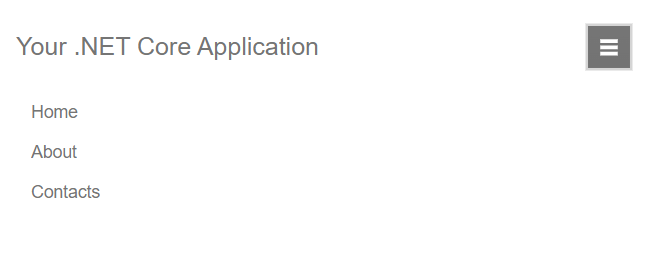
You will initialize a Responsive Panel component that collapses a [Menu](https://www.telerik.com/aspnet-core-ui/documentation/html-helpers/navigation/menu/overview) when the screen is less than 768 pixels in width, and the Menu is then expanded or collapsed by a button. Next, you will handle the `Open` event of the component and disable a specified Menu item. Finally, you can run the sample code in [Telerik REPL](https://netcorerepl.telerik.com/) and continue exploring the components.
## Prerequisites
To successfully complete the tutorial, you need a project that is already configured to use the Telerik UI for ASP.NET Core components:
* To create a new pre-configured project for the Telerik UI for ASP.NET Core components, you can use [a project template](https://www.telerik.com/aspnet-core-ui/documentation/vs-integration/new-project-wizard).
## 1. Prepare the CSHTML File
The first step is to add the required directives at the top of the `.cshtml` document:
* To use the Telerik UI for ASP.NET Core HtmlHelpers:
```cshtml
@using Kendo.Mvc.UI
```
* To use the Telerik UI for ASP.NET Core TagHelpers:
```cshtml
@addTagHelper *, Kendo.Mvc
```
Optionally, you can structure the View content by adding the desired HTML elements like headings, divs, paragraphs, and others.
```Razor HtmlHelper
@using Kendo.Mvc.UI
```
## 2. Initialize the Responsive Panel
Use the Responsive Panel HtmlHelper or TagHelper to add the component to a page:
* The `Name()` configuration method is mandatory as its value is used for the `id` and the `name` attributes of the Responsive Panel element.
* The `Breakpoint()` option specifies the page width at which the Responsive Panel will hide, and its toggle button will be visible.
* The `Orientation()` method sets the direction from which the hidden element will open when the toggle button is activated.
* The `Content()` method contains the HTML content of the Responsive Panel.
```Razor HtmlHelper
@using Kendo.Mvc.UI
```
## 3. Configure the Menu and the Toggle Button
The next step is to define the Menu as a content of the Responsive Panel and the toggle button that will be displayed when the screen width is less than 768 pixels.
When using the Responsive Panel HtmlHelper configuration, you can initialize the [Menu component as Kendo UI for jQuery widget](https://docs.telerik.com/kendo-ui/controls/menu/overview) since the `Content()` method accepts only HTML.
Also, hide the toggle button with CSS and define a media query to show it when the 768 pixels breakpoint is reached.
```Razor HtmlHelper
@using Kendo.Mvc.UI
```
```CSS Styles
```
## 4. Handle the Responsive Panel Events
The Responsive Panel exposes [events](https://www.telerik.com/aspnet-core-ui/documentation/api/kendo.mvc.ui.fluent/responsivepaneleventbuilder) that you can handle and implement a custom logic. In this tutorial, you will use the `Open` event that triggers before the Responsive Panel is opened, get a reference to the nested Menu, and disable the second Menu item.
```Razor HtmlHelper
@using Kendo.Mvc.UI
@(Html.Kendo().Responsive Panel()
.Name("responsive-panel")
.Events(e => e.Open("onOpen"))
.Content("
Home
About
Contacts
")
... // Other configuration.
)
```
```Razor TagHelper
@addTagHelper *, Kendo.Mvc
```
```JS scripts
```
## 5. (Optional) Reference Existing Responsive Panel Instances
You can reference the Responsive Panel instances that you have created and build on top of their existing configuration:
1. Use the `id` attribute of the component instance to get its reference.
```JS script
```
2. Use the [Responsive Panel client-side API](https://docs.telerik.com/kendo-ui/api/ui/responsivepanel#methods) to control the behavior of the component. In this example, you will use the `open()` and `close()` methods to programmatically toggle the Responsive Panel when a button is clicked.
```Razor HtmlHelper
@(Html.Kendo().Button()
.Name("menu-button")
.Content("Toggle ResponsivePanel")
.Events(ev => ev.Click("onBtnClick"))
)
```
```Razor TagHelper
@addTagHelper *, Kendo.Mvc
Toggle ResponsivePanel
```
```JS scripts
```
For more information on referencing specific helper instances, see the [Methods and Events](https://www.telerik.com/aspnet-core-ui/documentation/html-helpers/helper-basics/events-and-methods) article.
## Explore this Tutorial in REPL
You can continue experimenting with the code sample above by running it in the Telerik REPL server playground:
* [Sample code with the Responsive Panel HtmlHelper](https://netcorerepl.telerik.com/mdPmQIPo54uv4sjX21)
* [Sample code with the Responsive Panel TagHelper](https://netcorerepl.telerik.com/cRbmcybo55v3JLGC13)
## Next Steps
* [Handling the Responsive Panel Events](https://www.telerik.com/aspnet-core-ui/documentation/html-helpers/layout/responsivepanel/events)
## See Also
* [Client-Side API of the Responsive Panel](https://docs.telerik.com/kendo-ui/api/ui/responsivepanel)
* [Server-Side API of the Responsive Panel HtmlHelper](https://www.telerik.com/aspnet-core-ui/documentation/api/responsivepanel)
* [Server-Side API of the Responsive Panel TagHelper](https://www.telerik.com/aspnet-core-ui/documentation/api/taghelpers/responsivepanel)
* [Knowledge Base Section](https://www.telerik.com/aspnet-core-ui/documentation/knowledge-base)